Create an upsell rule
What this article covers
Use this guide to create an upsell rule in Impulse and control where that rule appears. You will learn how to choose the correct Sales Channel, limit a rule to Specific Stores, set Online Placement for online-only rules, add Trigger products, choose Upsell Products, and use Top Priority when needed.
Before you start
- Open the app and go to Create Upsell Rule.
- Make sure the Shopify products you want to use already exist in your store.
- If you want to target specific physical locations, confirm your Shopify locations are active and available in Impulse.
Create the rule
Choose the right sales channel
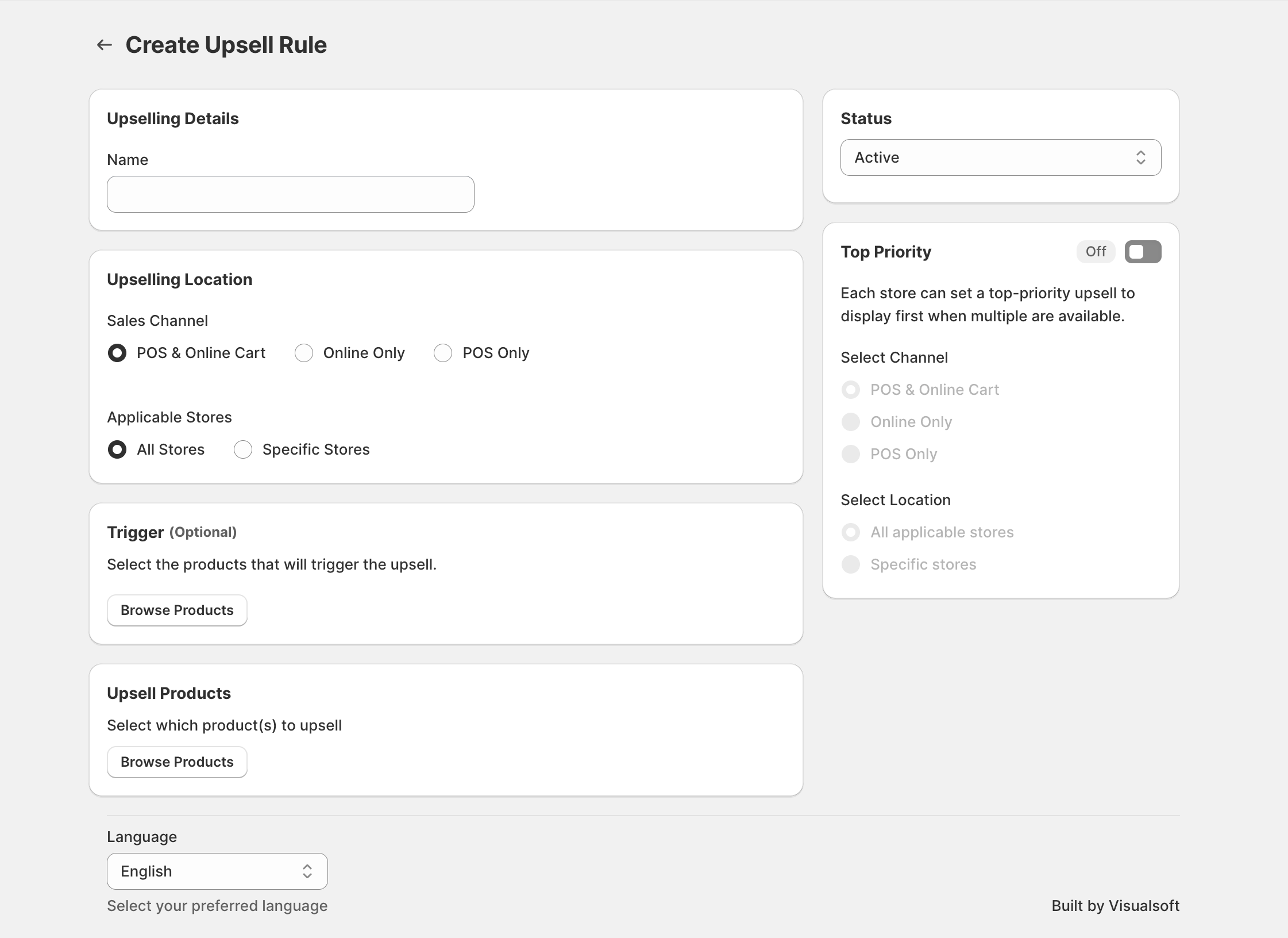
The Sales Channel setting controls where the upsell rule can run. On the Create Upsell Rule screen, Impulse shows three options:
- POS & Online Cart
- Online Only
- POS Only
POS & Online Cart
Choose POS & Online Cart when you want the same rule to work across both in-store selling and the online cart experience. This is the broadest option and is useful when the same recommendation makes sense in both channels.
Online Only
Choose Online Only when the upsell should appear only for online shoppers. When you select this option, Impulse shows an additional Online Placement field.
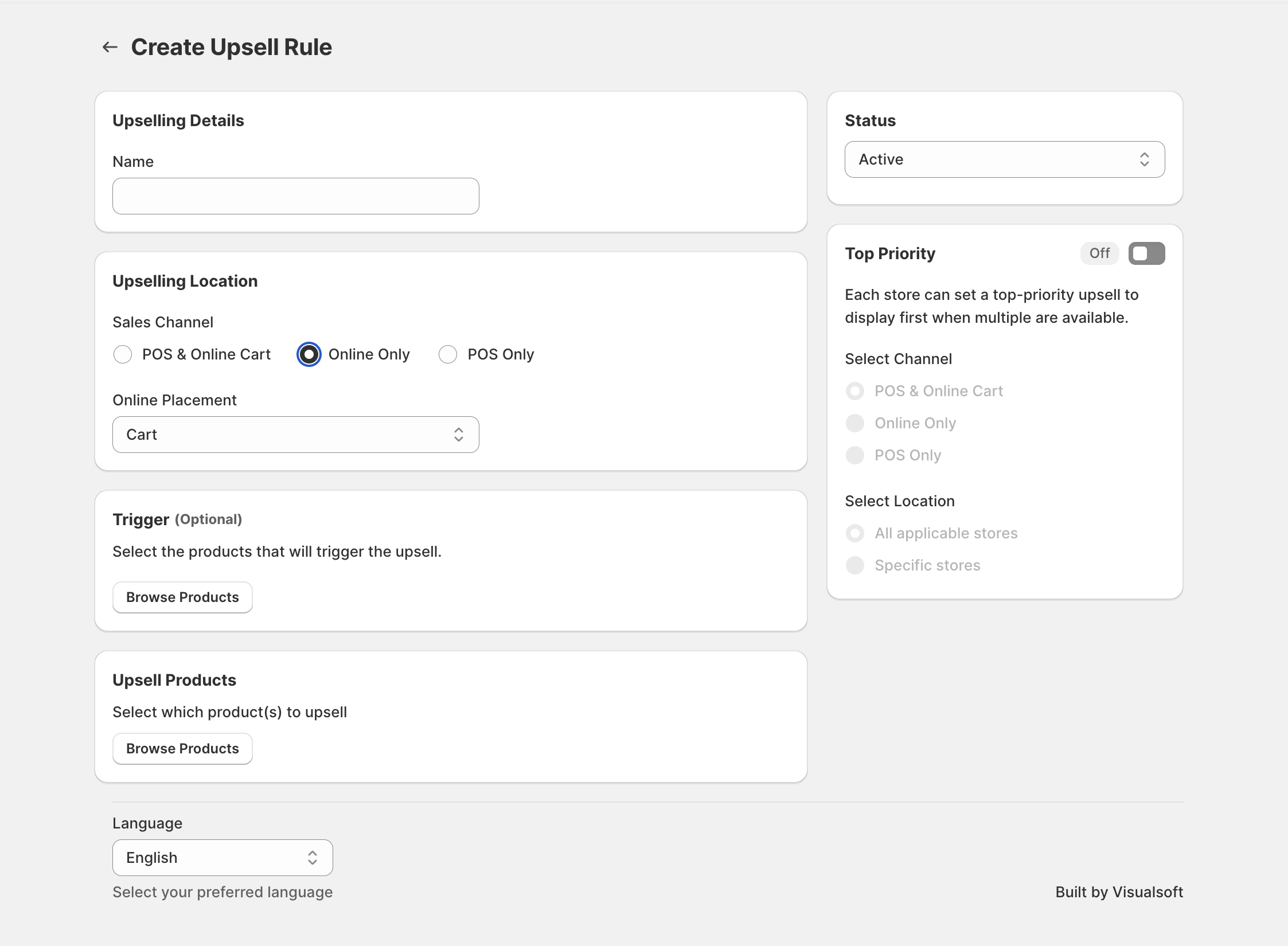
Use Online Placement to choose where the upsell products are shown online:
- Cart — show the upsell in the cart experience
- Checkout — show the upsell at checkout, if that placement is available in your setup
POS Only
Choose POS Only when the recommendation should appear only in your point-of-sale workflow. This is useful for in-store add-ons that do not need to appear online.
Set the rule for all stores or specific store locations
When the selected sales channel supports store selection, the Applicable Stores area lets you decide whether the rule applies everywhere or only in selected places.
- All Stores — the rule can run in every applicable location
- Specific Stores — the rule runs only in the locations you choose
If you choose Specific Stores, Impulse opens a Select Stores window where you can search locations, tick the stores you want, and click Add.
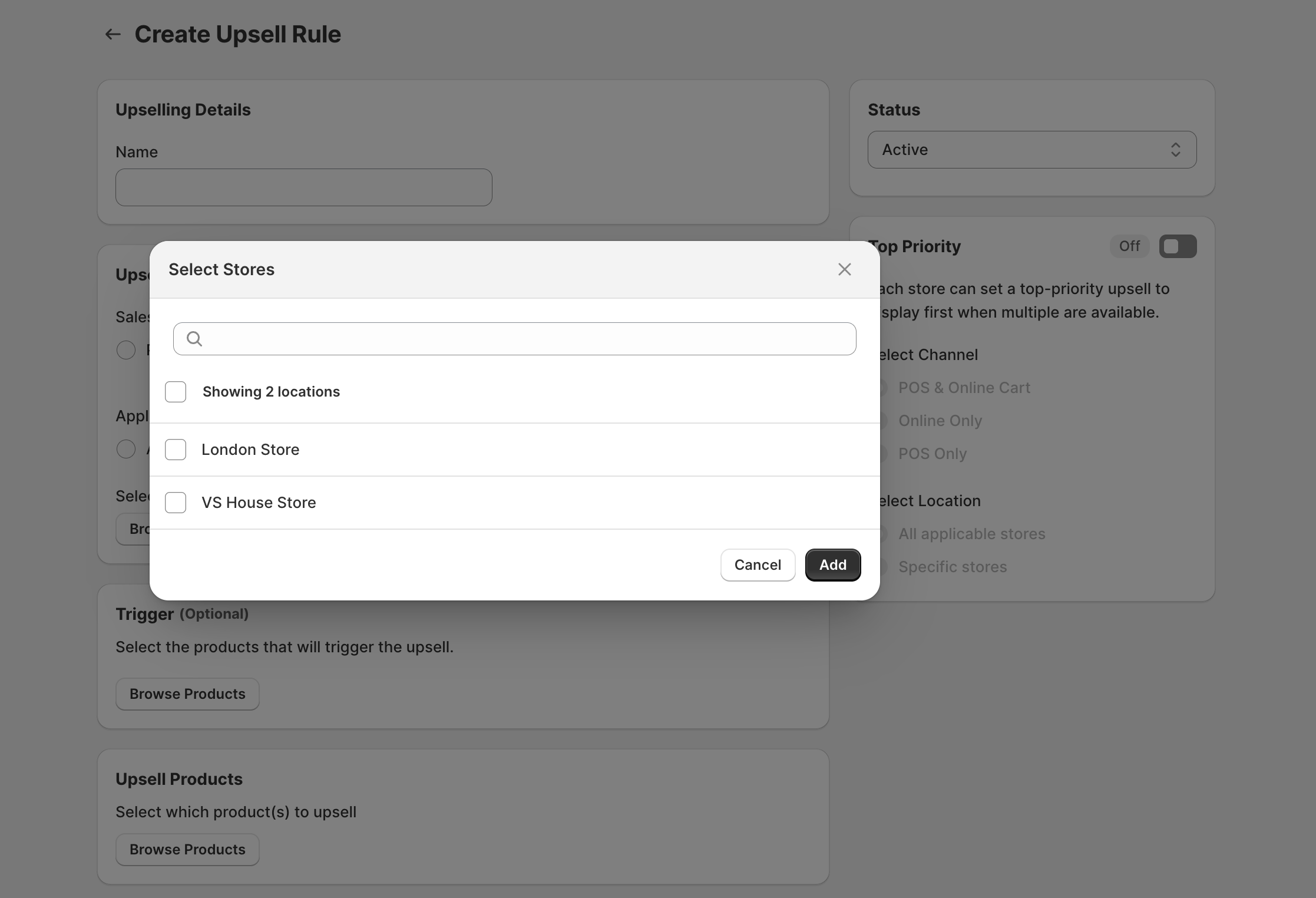
This is especially useful when a promotion should run only in one branch, one region, or one store group.
Trigger products explained
The Trigger (Optional) section controls what starts the upsell. Trigger products are the products a customer must already be buying, adding, or interacting with before the upsell rule becomes relevant.
To set trigger products:
- Go to Trigger (Optional).
- Click Browse Products.
- Select the product or products that should activate the rule.
How trigger products work
- If a customer adds one of the selected trigger products, the rule becomes eligible to show.
- If you select multiple trigger products, the rule can be used for any of those selected items.
- If you leave Trigger (Optional) empty, the rule is not tied to a specific trigger product list.
When to use trigger products
- Accessory selling: Trigger on a main product and recommend a matching add-on.
- Service add-ons: Trigger on a premium item and recommend setup, protection, or extended service.
- Collection-specific upsells: Trigger on a narrow product group instead of showing the same recommendation to everyone.
Set the products to be upsold
The Upsell Products section controls the items Impulse recommends after the rule is triggered.
To set upsell products:
- Go to Upsell Products.
- Click Browse Products.
- Select the product or products you want to promote.
Best practices for upsell products
- Choose products that make sense with the trigger product.
- Keep the recommendation relevant to the sales channel. For example, some offers may work better in POS Only than online.
- If you are targeting Specific Stores, make sure the upsell products are appropriate for those locations.
Use Top Priority when required
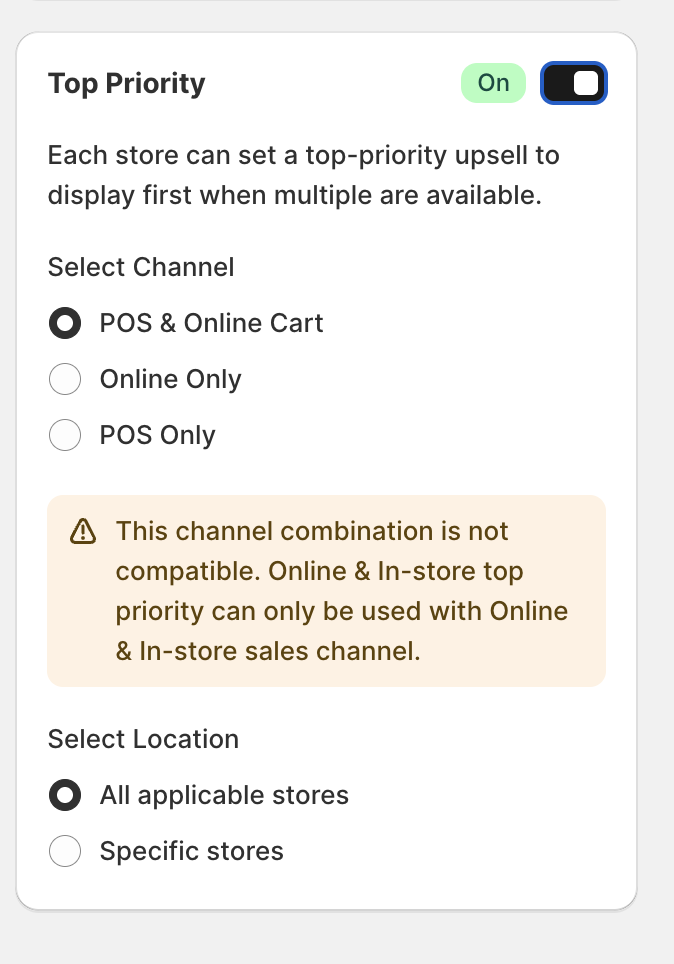
The Top Priority panel is used when you need one upsell to display first over other matching rules.
When enabled, the panel lets you choose:
- Select Channel
- Select Location
This means you can set a top-priority rule by channel and by store scope.
How Top Priority behaves
The panel text explains that each store can set a top-priority upsell to display first when multiple are available. This is useful when you want one recommendation to win over other eligible rules.
Important compatibility note
If you choose an unsupported combination, Impulse shows a warning message. For example:
This channel combination is not compatible. Online & In-store top priority can only be used with Online & In-store sales channel.
So if you need a top-priority rule that works across both online and in-store, make sure the main rule is also set to the combined channel option.
How weight-based logic works
Impulse uses weight-based logic to decide which rule should be shown when more than one rule could apply.
- If only one rule matches, that rule can be shown.
- If several rules match, the app uses rule weighting to decide which one should appear.
- If you enable a valid Top Priority rule, that rule can be shown first for the selected channel and location scope.
This gives you two levels of control:
- Weight-based logic for normal rule ordering
- Top Priority for exceptions where one upsell must take precedence
Example setups
Checklist before you save
- The Name clearly identifies the rule.
- Status is set correctly.
- The correct Sales Channel is selected.
- If using Online Only, the correct Online Placement is selected.
- If needed, Applicable Stores is limited to the right locations.
- The correct Trigger products are selected.
- The correct Upsell Products are selected.
- Top Priority is enabled only if you need the rule to override normal weight-based behavior.
- The correct Language is selected.