How can I check the Products Upsold area?
Products Upsold FAQ
Use this quick FAQ to find the Products Upsold area in Impulse and understand the key numbers shown on the product page.
The Products Upsold area appears on an individual product page inside Products.
In Impulse, open Products Upsold, then select the product you want to review. On that product page, scroll to the section showing Upsell Revenue and Upsell Rules.
Upsell Revenue shows how much revenue that product has generated through upsells. The chart also separates performance into Revenue in the last 30 days, Web Revenue in the last 30 days, and POS Revenue in the last 30 days.
The Upsell Rules table shows which upsell rules use that product and how each rule is performing.
Name
Serves
Views
Clicks
Sold
Revenue
If Views are high but Clicks are low, customers are seeing the upsell but not engaging with it. If Clicks are high but Sold is low, the offer is getting interest but not converting.
If Upsell Revenue and the table Revenue column both show £0.00, that product has not generated upsell sales in the period shown yet.
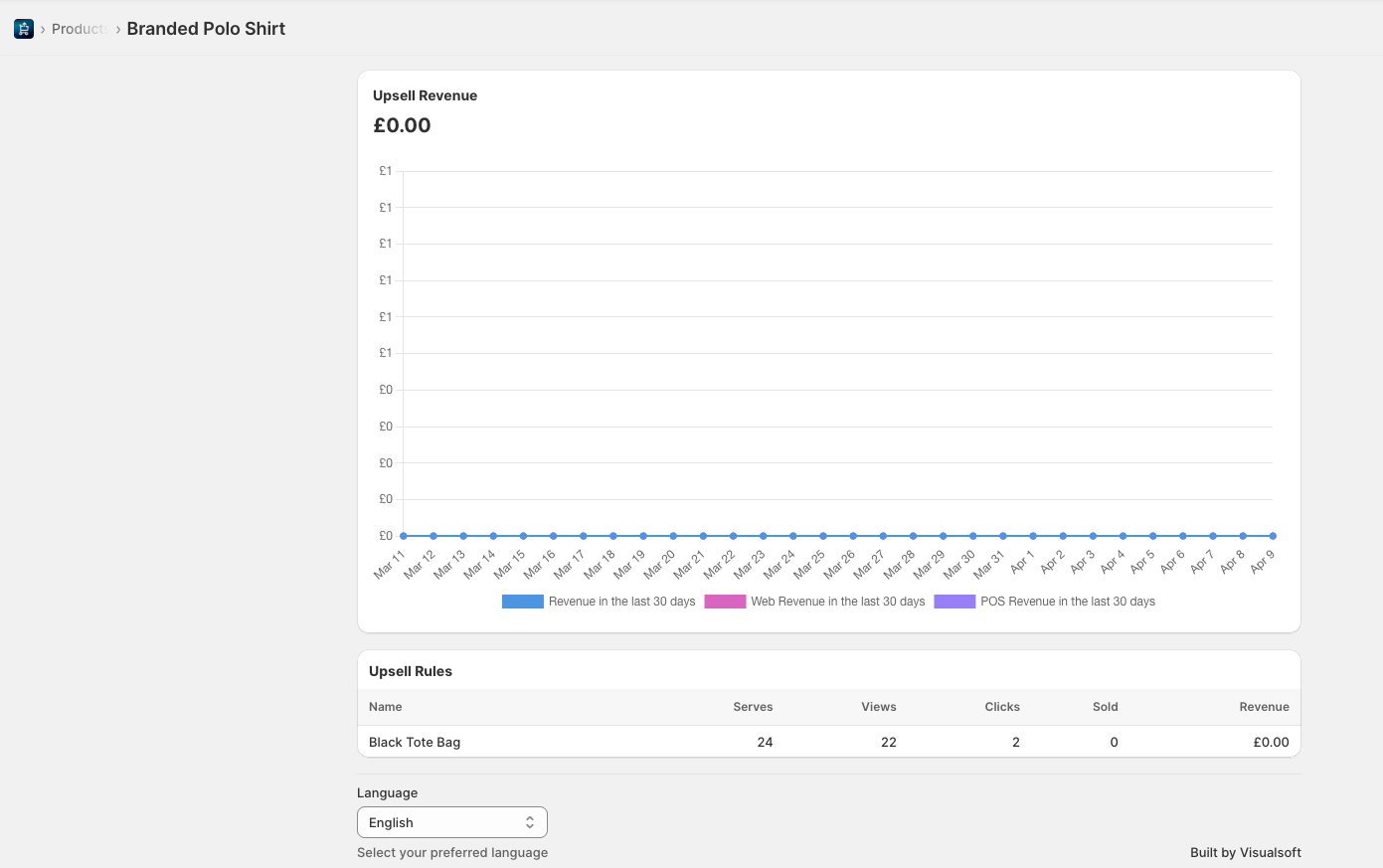
Use the Upsell Revenue chart for the overall trend, then use Upsell Rules to identify which specific rule is driving the results.