How do I use Impulse via POS?
Using Impulse in Shopify POS
This FAQ explains how to use Impulse inside Shopify POS, what staff can do from the Impulse tile, and how to make sure the right upsell products appear.
Create and activate your upsell setup in Create Upsell Rule before testing in Shopify POS. If no POS-ready rule exists, the Impulse tile will not have products to show.
On the Shopify POS home screen, look for the tile labelled Impulse. The tile may show a subtitle like View 2 products, which tells staff how many upsell products are currently available.
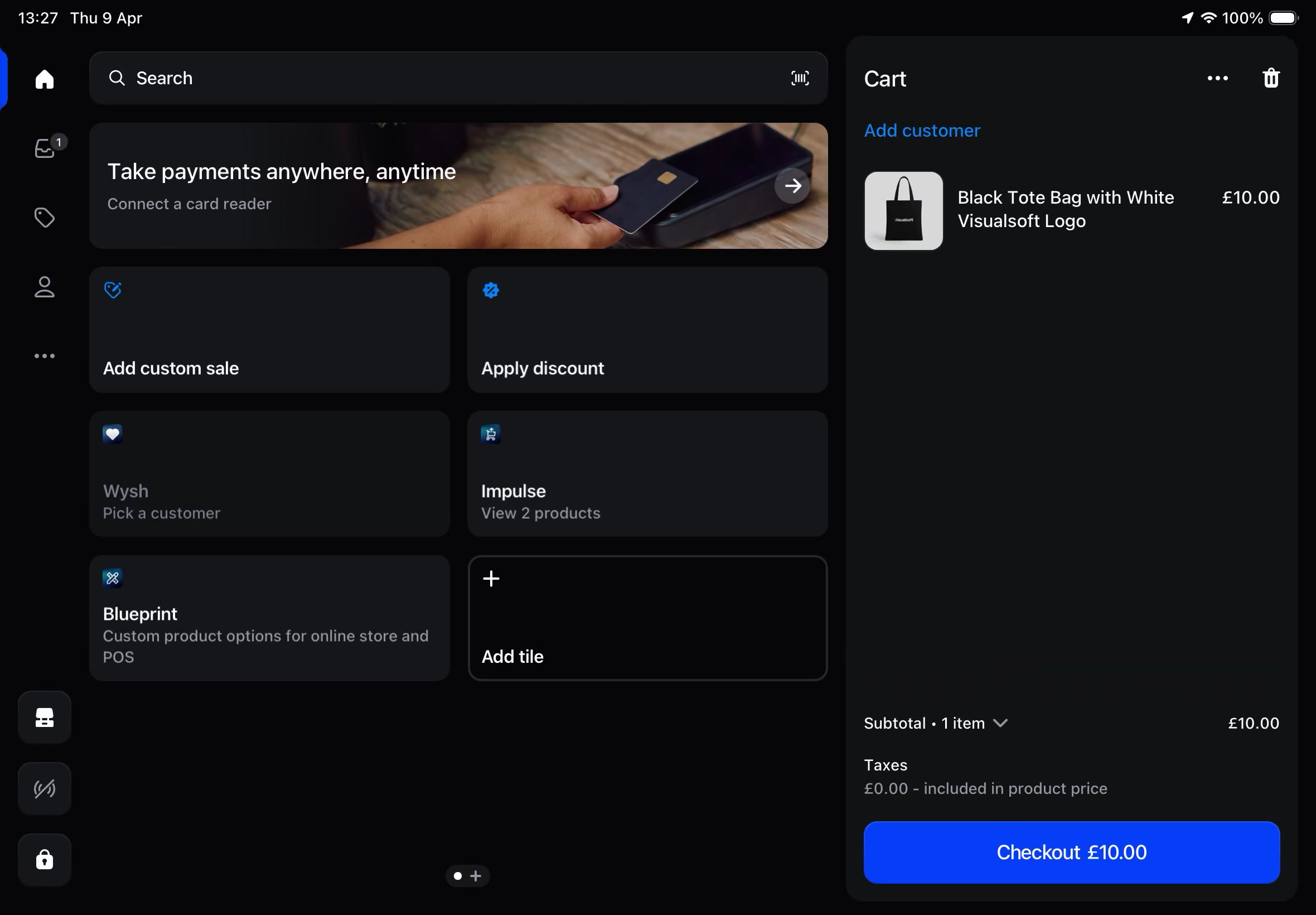
Tapping Impulse opens an Impulse product list over the POS screen. Staff can review available upsell items without leaving the current cart flow.
Each item in the list shows the product image, product name, price, and an arrow to open more detail.
Open the Impulse tile, tap the arrow beside a product, review the product details, then tap Add to Cart.
On the detail screen, staff can also check Variant Details, price, and stock information such as 5 in stock before adding the item.
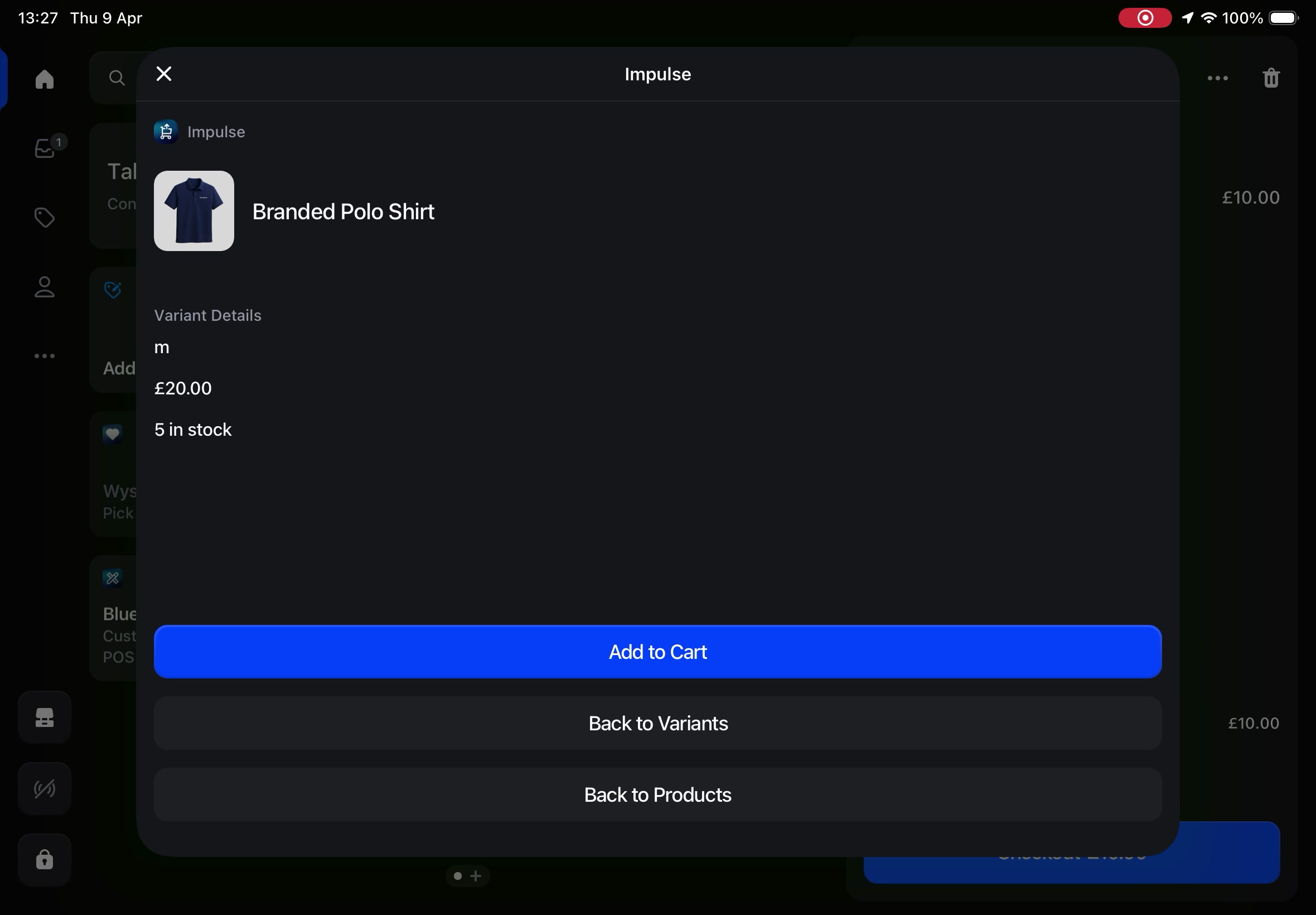
Yes. Staff can use Back to Variants to return to variant options or Back to Products to return to the main Impulse product list.
In the Impulse app, open Create Upsell Rule. Then:
Enter a rule name in Upselling Details under Name.
Set Status to Active.
In Upselling Location, set Sales Channel to POS Only or POS & Online Cart.
Choose Applicable Stores as All Stores or Specific Stores.
Use Browse Products in Upsell Products to add the products staff should offer.
If needed, use Trigger (Optional) and Browse Products to limit the offer to carts containing specific products.
Check these settings in your rule:
Status is set to Active
Sales Channel is set to POS Only or POS & Online Cart
The correct stores are selected in Applicable Stores
Products were added in Upsell Products
If you use Trigger (Optional), the current cart matches the trigger products
If Sales Channel is set to Online Only, the rule is not set up for POS.
Open the product detail view and confirm the price, Variant Details, and stock level before tapping Add to Cart. This helps staff offer items that are relevant and available.
Best practice
Keep POS offers simple. Use products that are easy to explain at the counter, and use Specific Stores when offers should only appear in certain locations.